Miller Johnson Tech Resources
Having trouble? You can always call the Help Desk at 616-831-1999 (it auto forwards to the after hours help desk line as well)
How to login into MJ Desktop remotely, setup new mobile device and other troubleshooting
Instruction to login remotely and setup email on your device are sensitive and require you to sign in with your Miller Johnson login info to access.
See directions at this link
When your Miller Johnson password changes, you will need to update it on your iPhone and iPad as well.
Tap Settings app
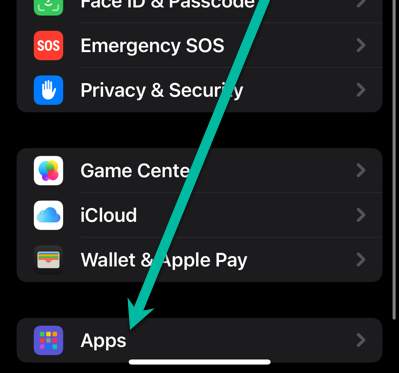
Scroll to the bottom and tap Apps
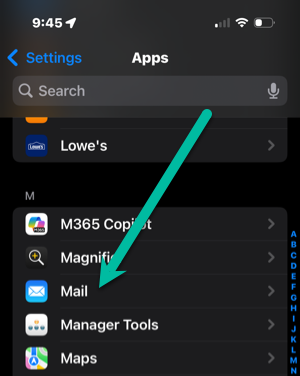
Tap Mail
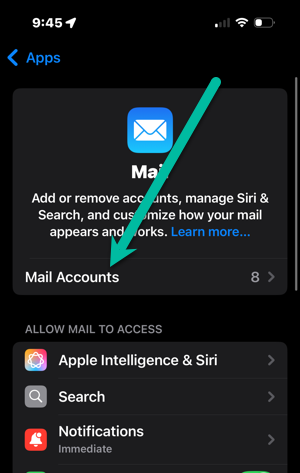
Tap Mail Accounts
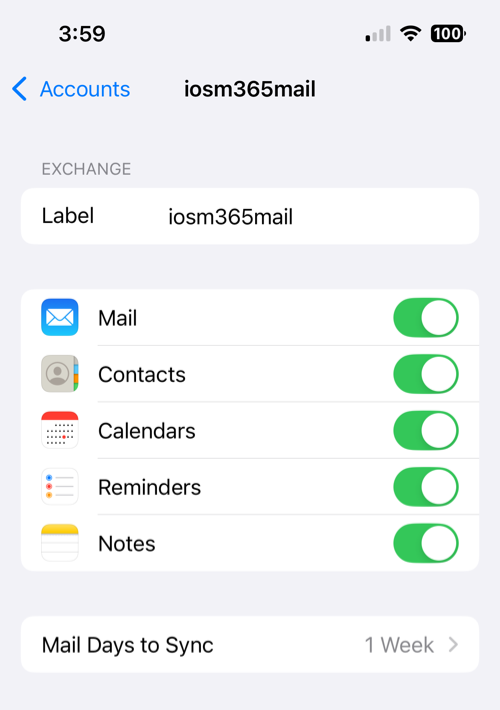
Tap iosm365mail (if you don’t see this, scroll to the bottom of these instructions for option to refresh this listing)
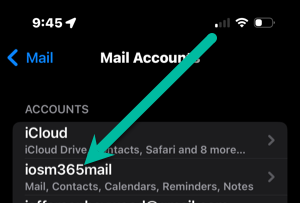
Tap Re-Enter Password
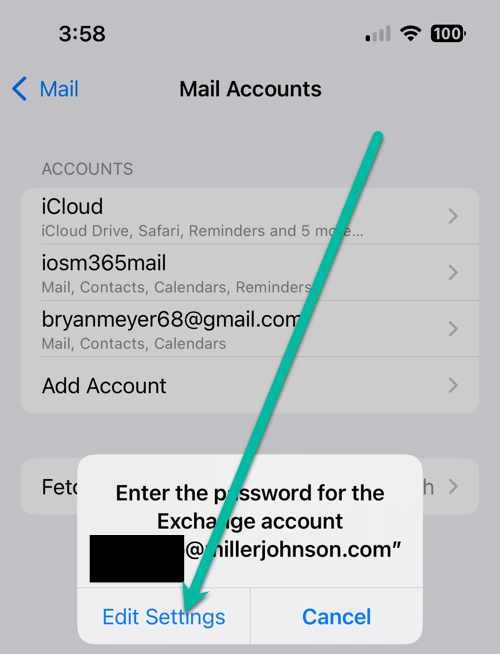
Tap Edit Settings
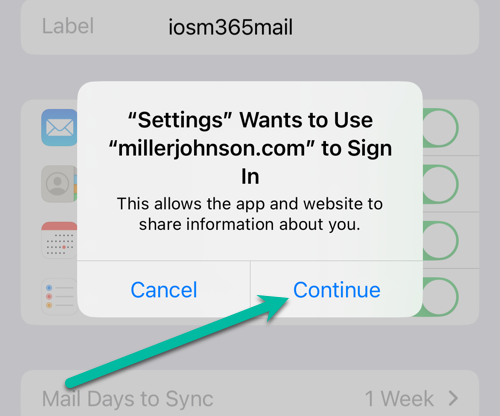
Then on the screen below, tap Continue
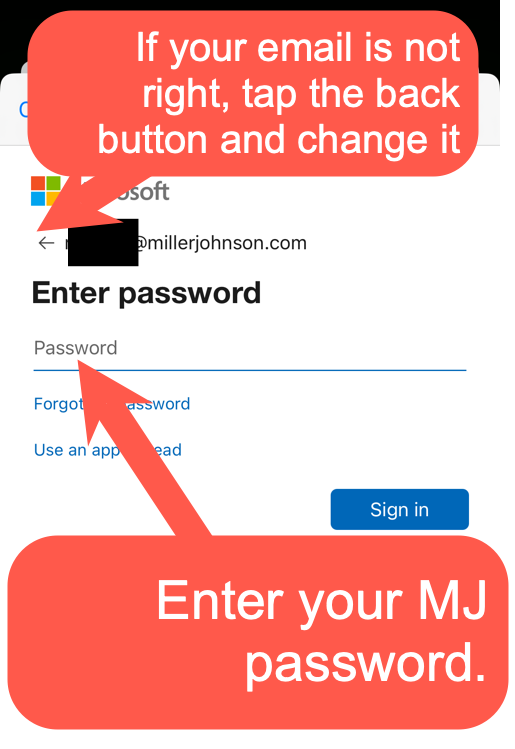
You should get taken to a Microsoft sign in page. Make sure at the top it has your correct email address and then your password on the next screen.
Hit Continue and Accept on the next screen
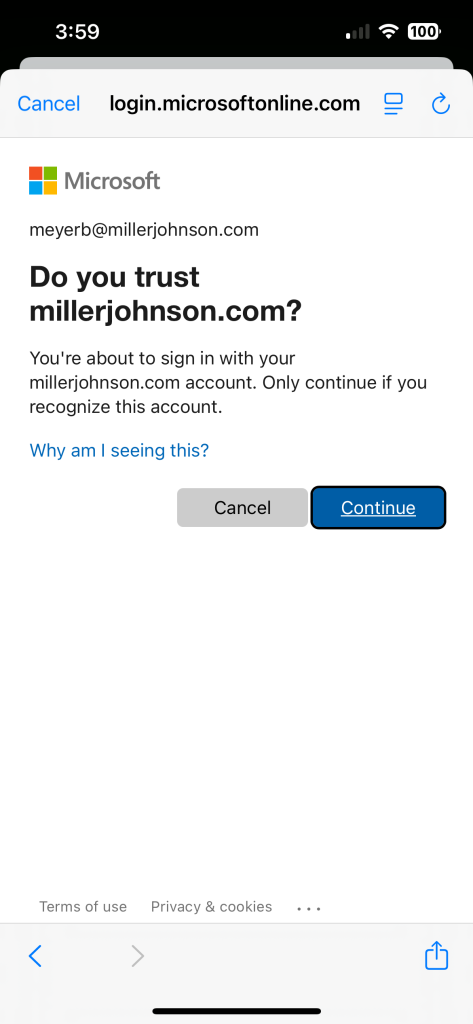
It should look like this and then calendar and email items should begin appearing.