
Setup Microsoft Authenticator 2 factor app
The option to use texting or phone calls for two factor is going away at 6 pm Monday, September 29. Follow the directions below to setup a two factor app.
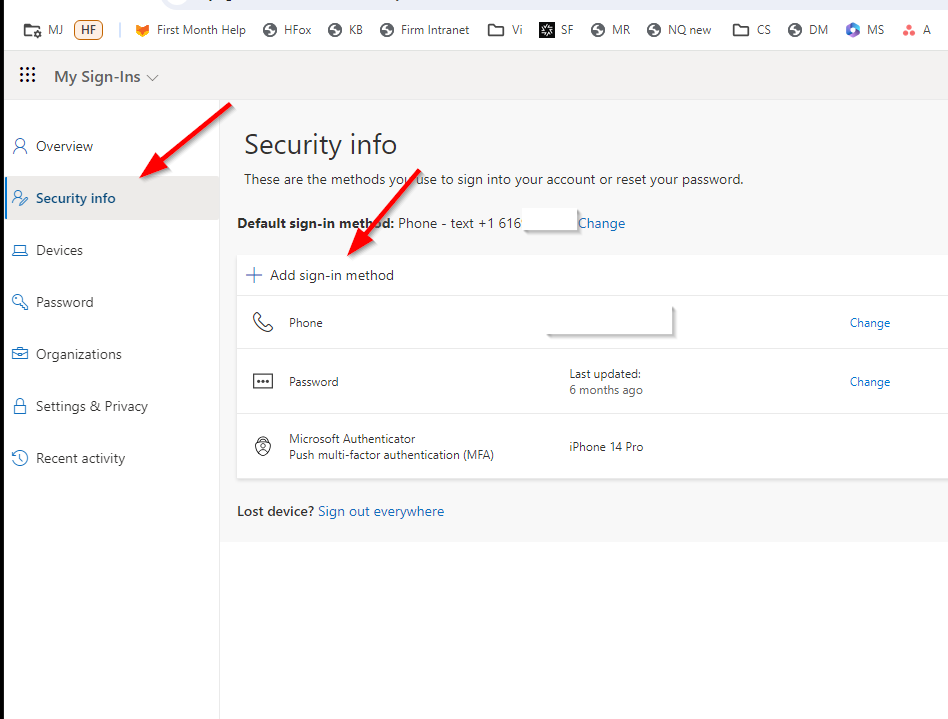
To get the 2 factor app setup, on your computer, go to http://mysignins.microsoft.com/security-info or aka.ms/mysecurityinfo
Login with your Miller Johnson email address and password. You may have to approve with 2 factor.
Then click “Add sign-in method”
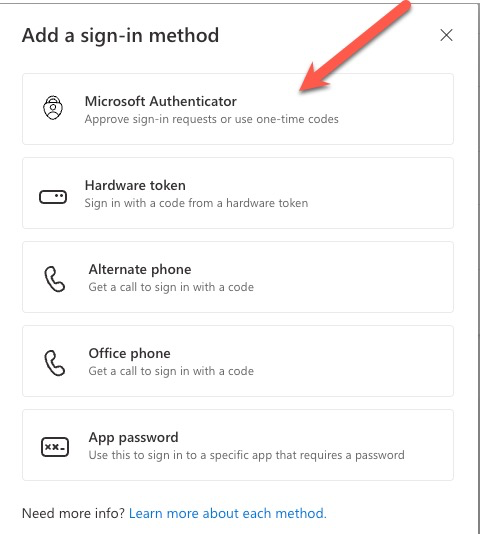
Choose Microsoft Authenticator App
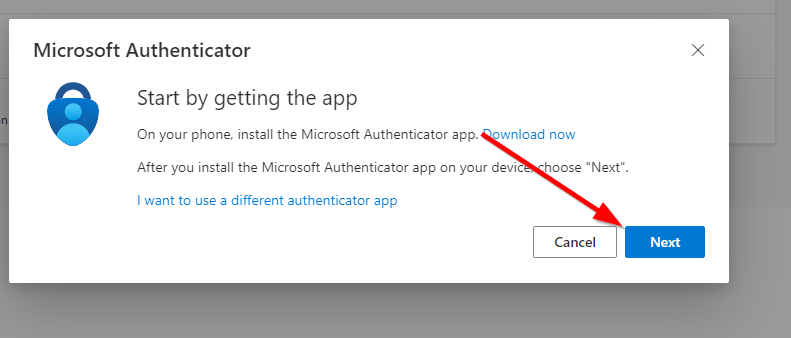
If you have MJ email on your phone, you should already have the Microsoft Authenticator app installed on your phone. If you don’t, you can download it from the App Store. Click Next and then follow the directions to setup the app.
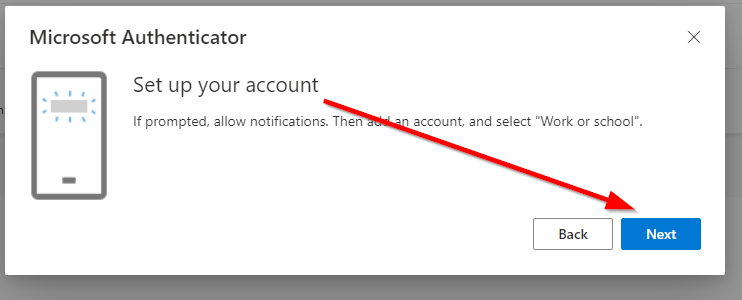
On your computer, click Next.
You should see a QR code on the computer screen.
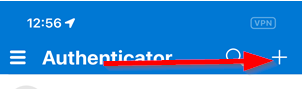
On your phone, launch the Microsoft Authenticator app and tap the + in the top right
Then tap Work or School
Then tap Scan QR code
Scan the QR code shown on your computer with your phone’s camera. This should have you test out the settings and then add the account.
Now when you try to login, you should see these options.
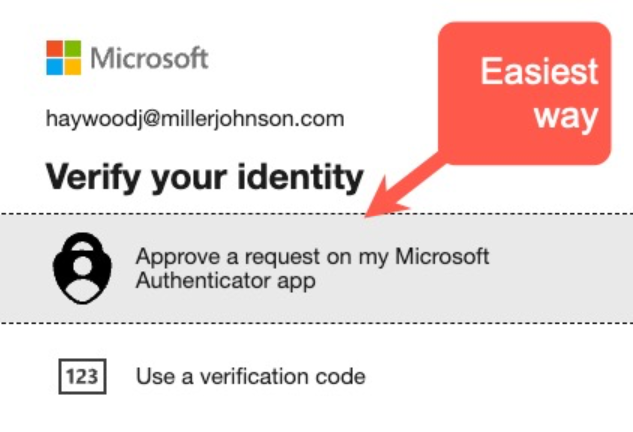
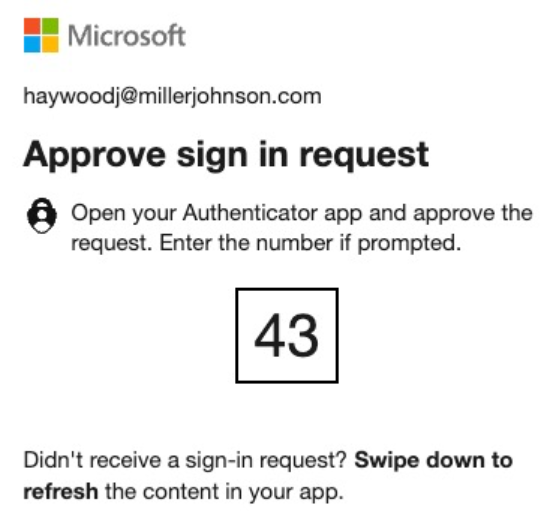
Your computer willl then show a message like this.
At the same time, you will get an alert on your phone to tap.
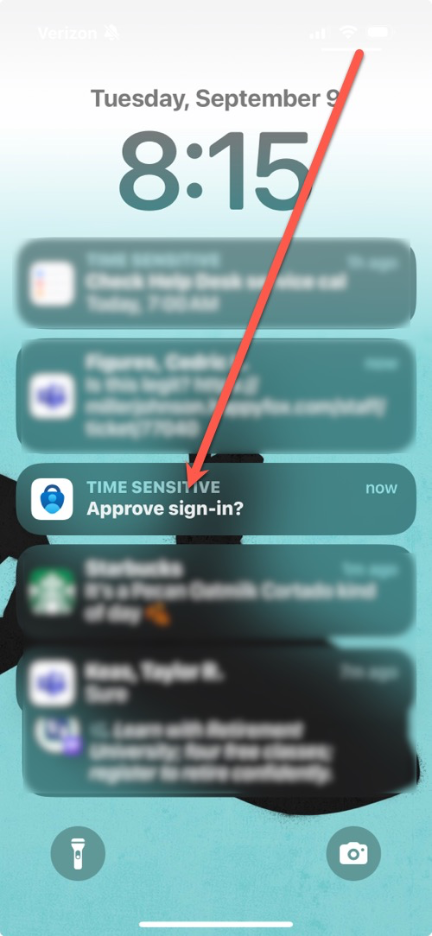
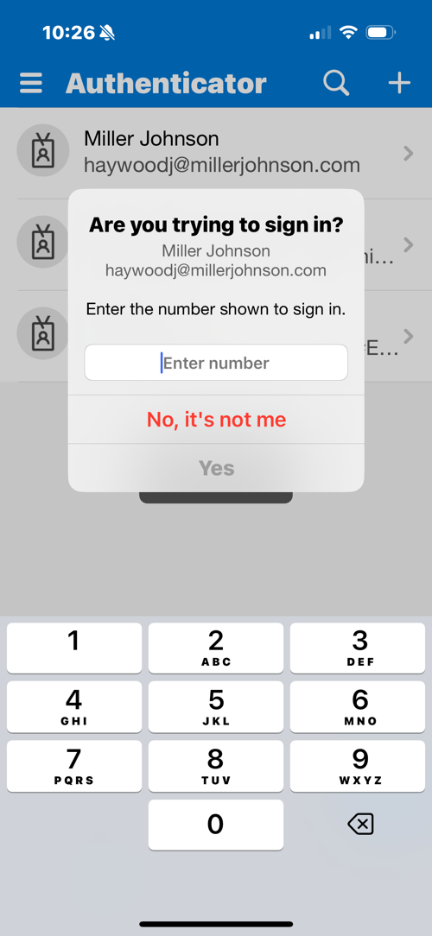
Then you just enter the 2-digit code you see on your computer screen on your phone.
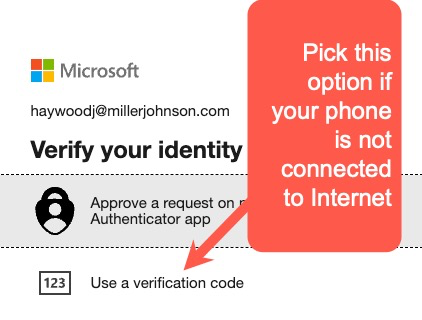
There is also an option to enter a 6-digit verification code through this option, convenient when you are on a plane and your phone doesn’t have Internet access.
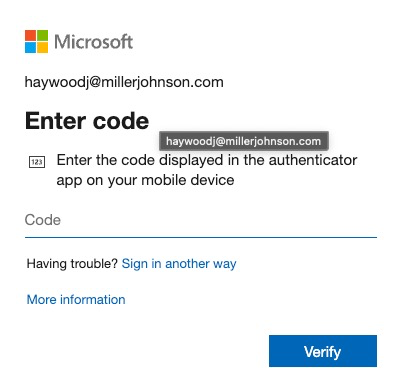
The computer will ask you to enter a code
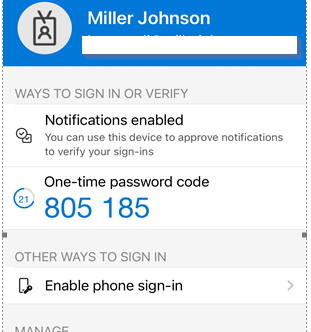
On your phone, you need to launch the Microsoft Authenticator app and tap on your Miller Johnson account.
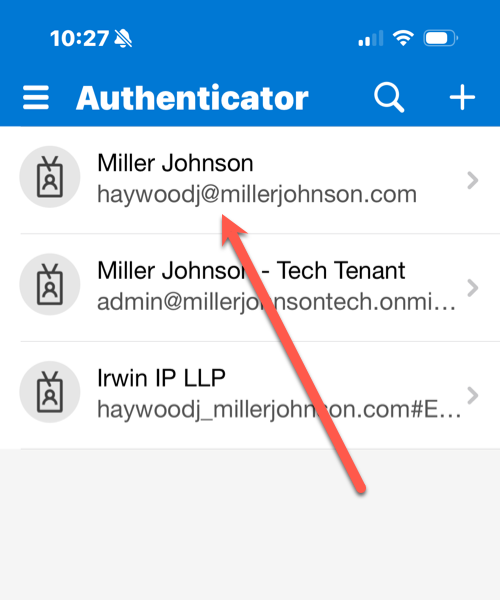
And then look for the code shown on the app and type it in on your computer (the code generates automatically and doesn’t need an Internet connection)
Please note: When you get a new phone, you will need your old phone to assist with setting up 2 factor or you will need to contact Help Desk.