
Switching to the 2026 MJ Desktop
Steps before the switch to 2026 MJ Desktop (click for instructions)
Your files and bookmarks
Some things will transfer to your new computer, and some things will not.
What will not transfer
• Downloads folder (and scans folder). Save what you want to NetDocuments.
• Random C drive folders
• Your Chrome passwords
• Tab Groups in Chrome
• Sticky Notes
• If you have access to others’ calendar/contacts/mailboxes, you will need to follow directions to re-add the access.
What will transfer
• Documents, Desktop and Pictures folders
• P Drive
• After you restart the first time, your web browser bookmarks and Word Building Blocks will be restored.
Passwords saved in Chrome
Passwords stored in Chrome will not be copied to your new MJ Desktop. If you want to copy these to your new computer, you will need to:
— If you have your passwords saved to a Keeper password manager account (Do you have a Keeper account? contact Help Desk and ask if you aren’t sure), you are all set (there is no password to remember). There are also steps to import your Chrome passwords to Keeper.
— If you do not have a Keeper password manager account, contact Help Desk to request one. After Help Desk sets you up, here is how to get started with Keeper and how to import your Chrome passwords to Keeper.
— If you already have an account for LastPass (how to reset your password if you forgot it), or another password manager like 1Password or Bitwarden, you can continue to use those. Please note: You need to know your password to your password manager BEFORE the switchover!
— Guide on transferring passwords from LastPass to Keeper (but you can continue to use LastPass if you want)
What to do after the upgrade
Below you will find the steps you need to know after the upgrade. These are the actions to take the morning after the overnight upgrade. You can find a link to this page at the top of millerjohnson.tech. We would recommend looking at this guide on your phone the morning after your upgrade.
Special note: If you are able to login early on your new MJ Desktop and start Outlook, it will give it time to download all your email. Plan on the setup taking about 30 minutes and it may take a few hours before your new computer is running at 100%.
Steps after the switch 2026 MJ Desktop (click for instructions)
Please note: You can find a link to this page at the top of millerjohnson.tech. We would recommend looking at this guide on your phone the morning after your upgrade.
What to do when you first login to new 2026 MJ Desktop
There will be several things you will need to do once you login to your new Miller Johnson Desktop, including doing a restart before doing any work. Here are the recommended order of actions.
Plan on the setup taking about 30 minutes and it may take a few hours before your new computer is running at 100%.
Need help? Call Help Desk at 616-831-1999 or 1999 if working in the office.
Special note: If you are able to login early on your new MJ Desktop and start Outlook, it will give it time to download all your email.
Key Step to Logging In!!!!
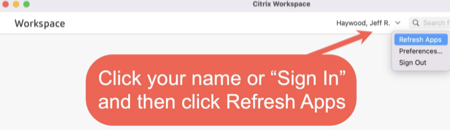
You likely will need to click the Menu or your name in the top right of the Citrix Storefront screen and click Refresh Apps.
When you get the Desktop screen
The first time you login, wait about two minutes for the Miller Johnson Startup Manager to open automatically. It’s also normal for both Chrome and Edge web browser to open but you can close both for now.
If this pops up, just click cancel.
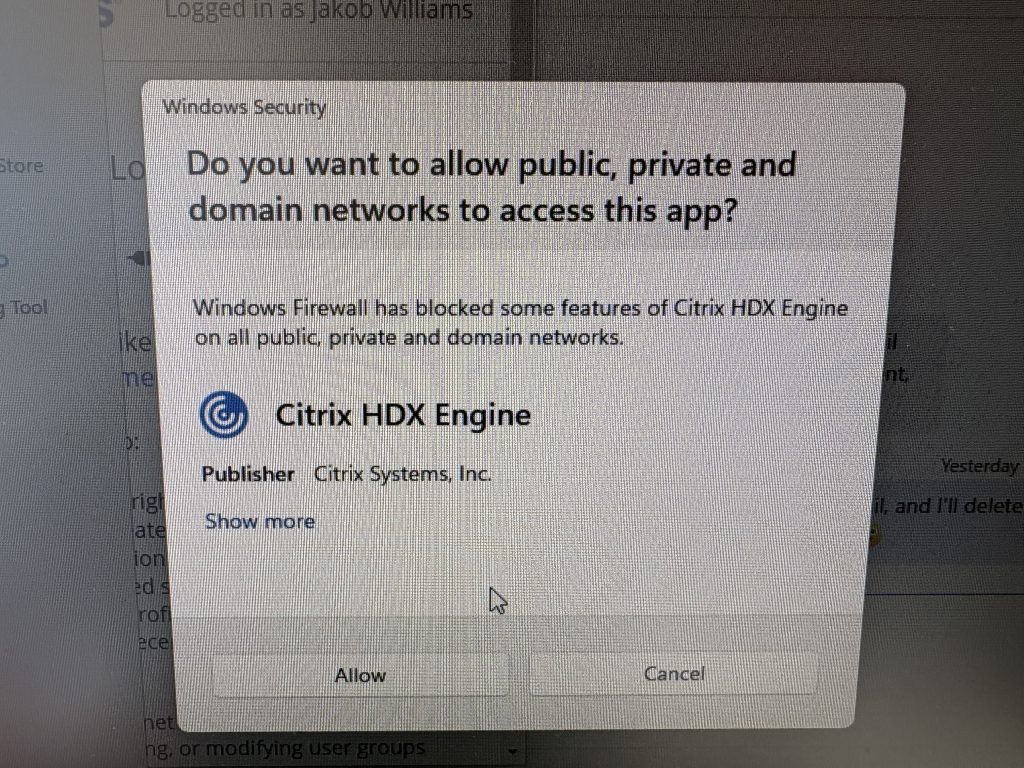
Click Cancel when this pops up
Take the steps below with the Startup Manager.
Miller Johnson Startup Manager (do this!)
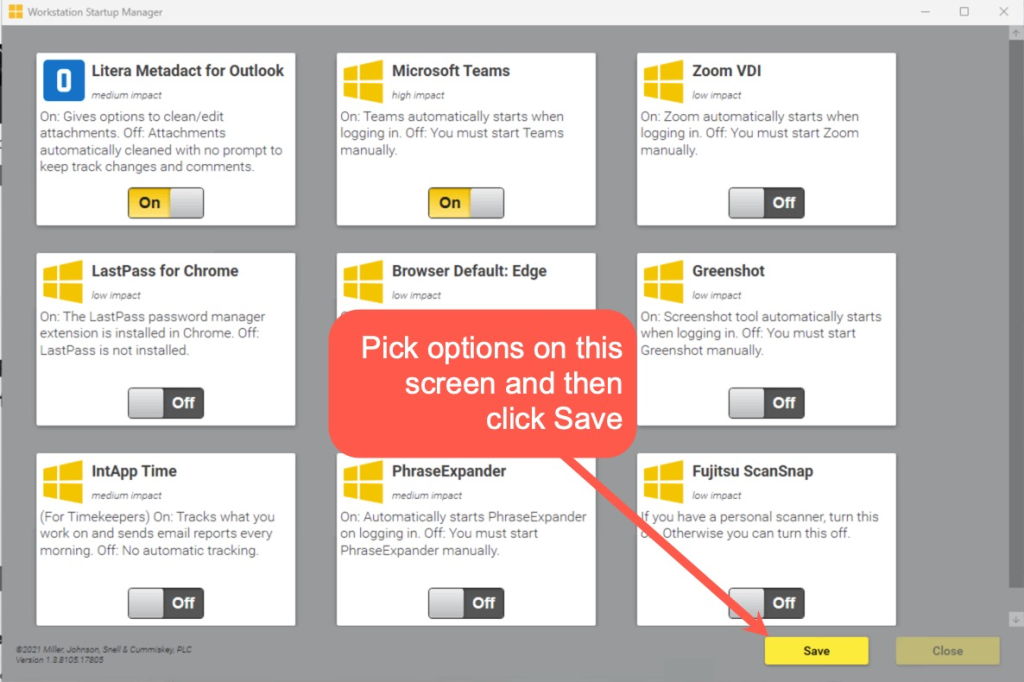
When you login, a window will open giving the option to turn on / off certain features of your desktop. If a selection is grayed out, you don’t have the program to worry about. (Other programs may pop up in front of this window, but you can just click on this to shift the focus back to it)
Here’s the recommendations on what to turn on and off:
Litera Metadact for Outlook (Recommend On): Gives you the option to clean documents when you email them and extra tools to edit attachments. If you don’t install, your attachments are automatically cleaned unless you add coding to the subject line.
Microsoft Teams (Recommend Off unless you use Teams instant message chat a lot)
Zoom VDI (Recommend On): Starts Zoom when you login.
LastPass for Chrome (Recommend On if you use LastPass) Adds LastPass to Chrome
Keeper Extension: (Recommend On if you have a Keeper account). Adds Keeper to Chrome
Browser Default: Edge: Leave this off makes Chrome your default browser. Turning it on makes Microsoft Edge your default browser.
Greenshot (Recommend On if you like to take screenshots) Starts Greenshot on login. (Hit Print Screen button to take screenshots)
IntApp Time (Recommend On if you are a Timekeeper) Tracks what you are working on and gives you an email report the next day.
PhraseExpander (Recommend On if you have PhraseExpander): Launches PhraseExpander when you login.
Fujitsu ScanSnap (Recommend On if you have a personal scanner): Launches scanning software when you login.
After you make your selections, click the Save button and then close the window.
Other steps to take
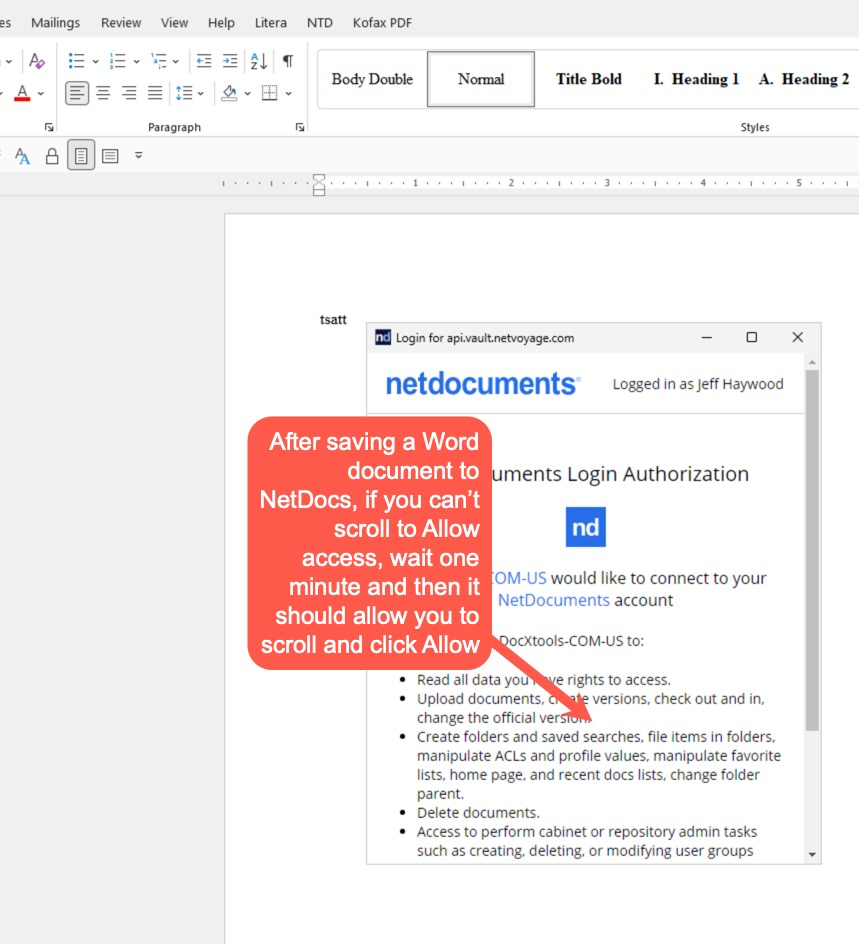
Click ‘Allow’ when NetDocs asks (and it will ask several times)
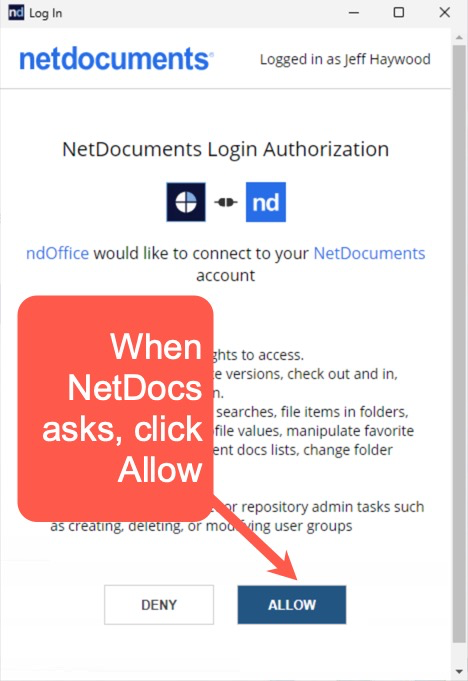
When you first login, NetDocs will ask you to click Allow. You will need to do this several more times as well later when you first save a Word document, save a Compare, use the PDF program, etc.
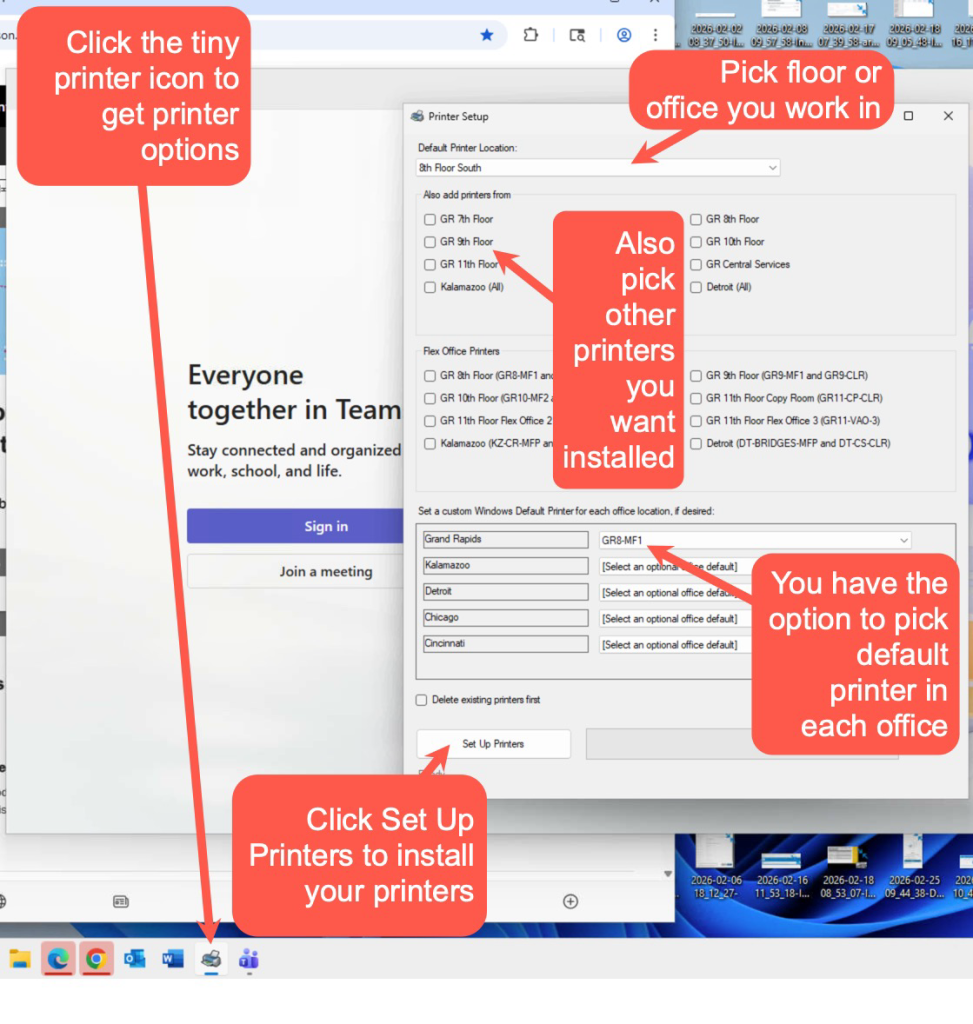
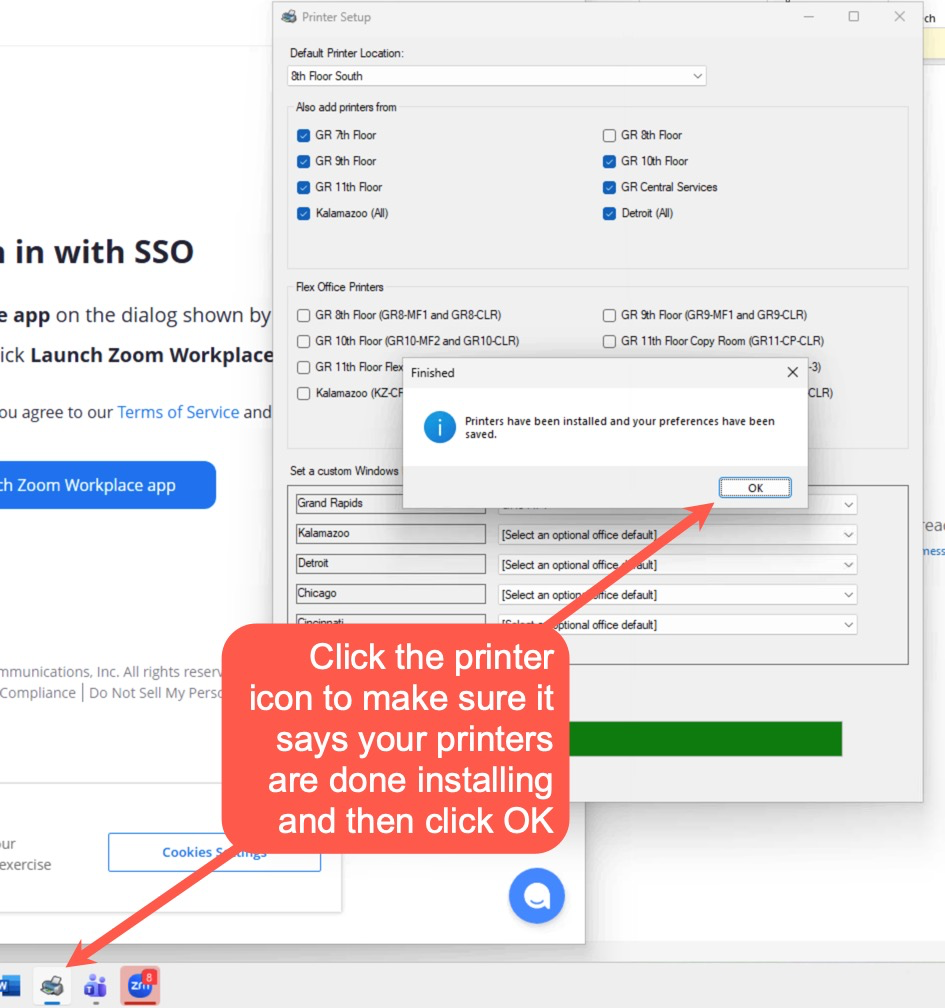
Printers: Setup your printers in your main office and also other offices.
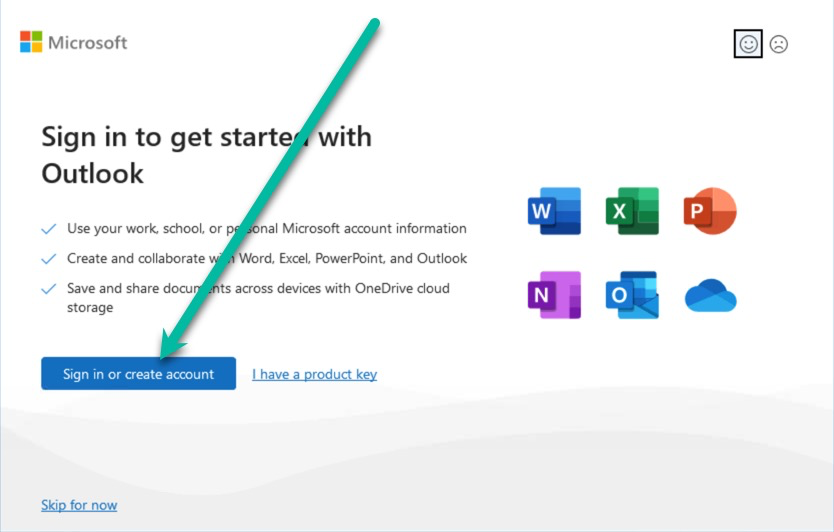
Outlook: Start Outlook. If you see this screen, click Sign in or create account button.
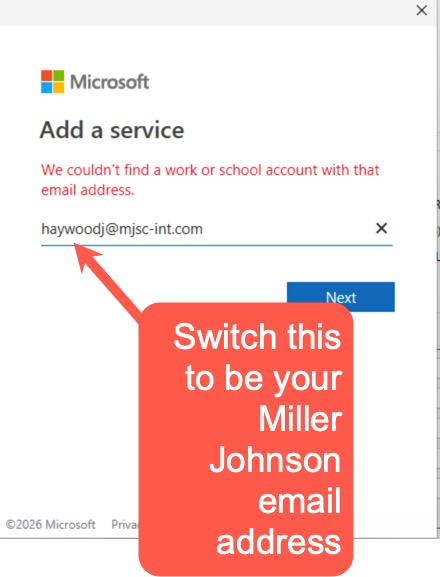
If you see this screen, you will need to enter your Miller Johnson email address and password.
Please note! Outlook will be slow to begin with as it downloads all your email.
Sign into Zoom account
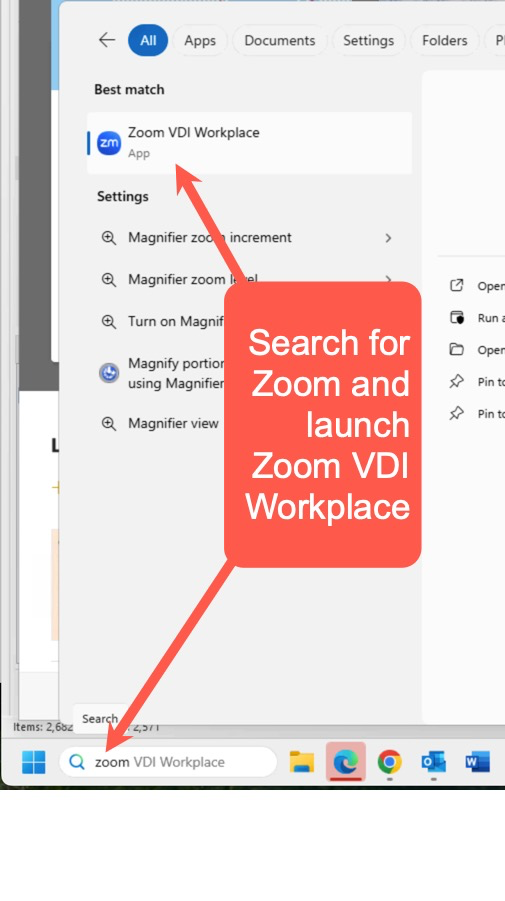
You will want to sign into Zoom if you attend or schedule meetings. You can launch Zoom from the Zoom icon on your desktop or search for it by the Start button.
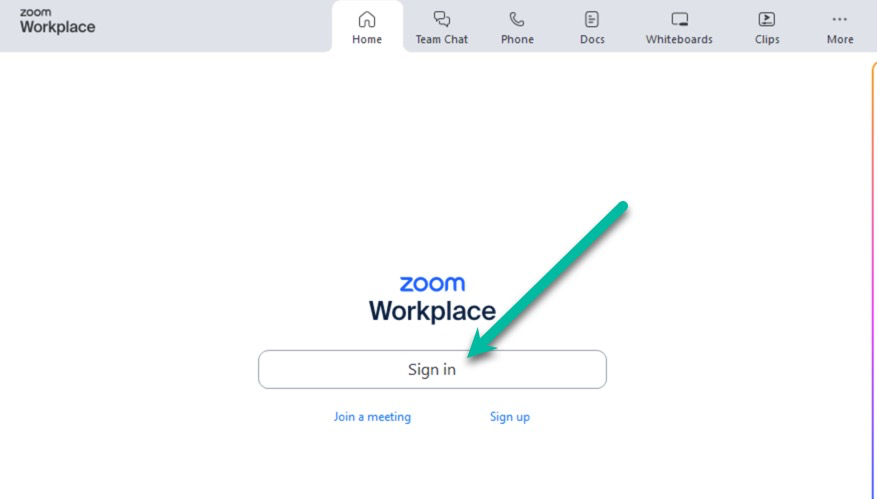
Click Sign In
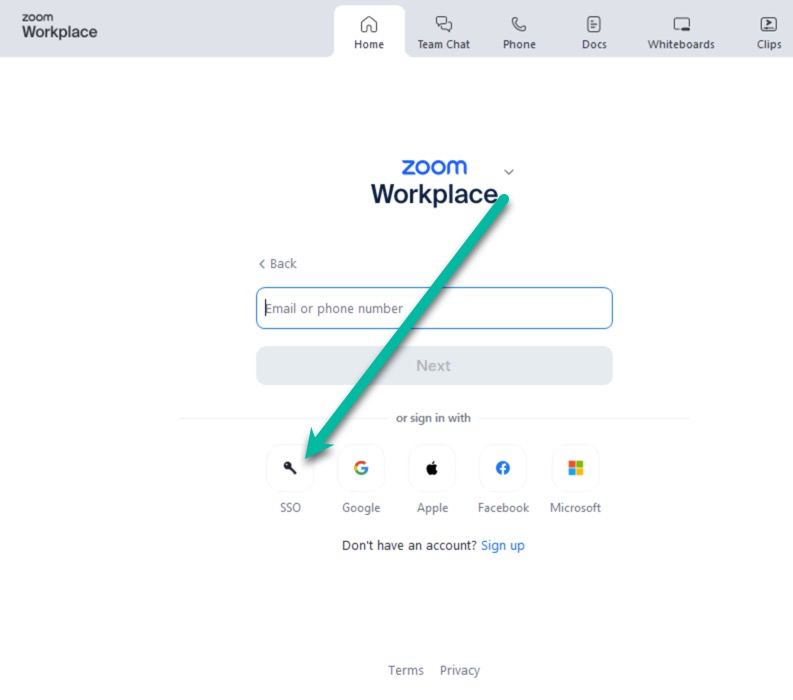
Click SSO button
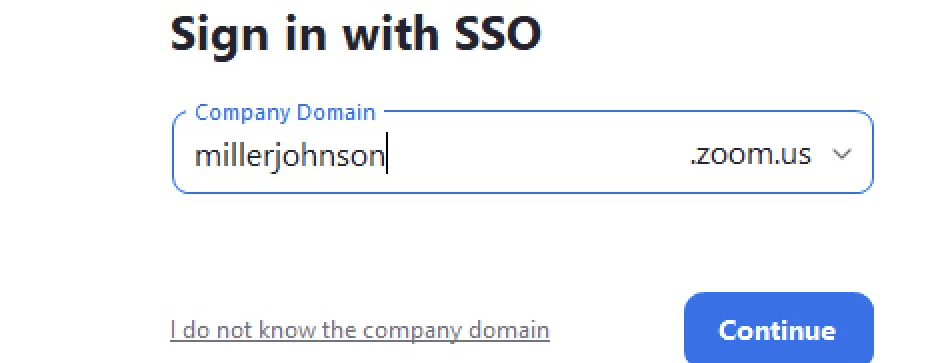
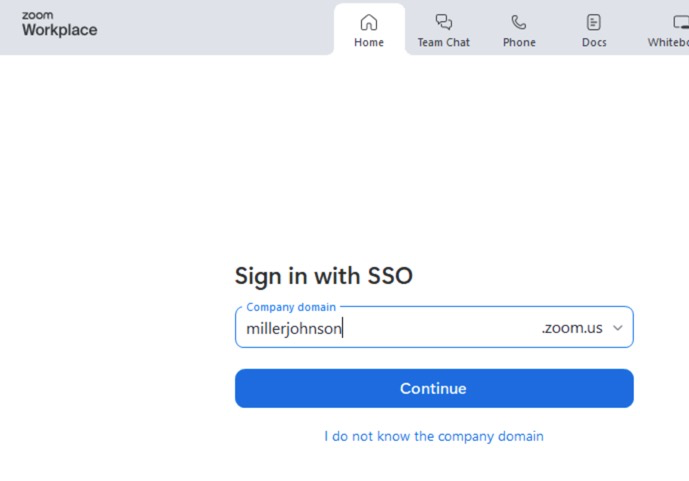
It will ask for your company domain, which is millerjohnson (no spaces).
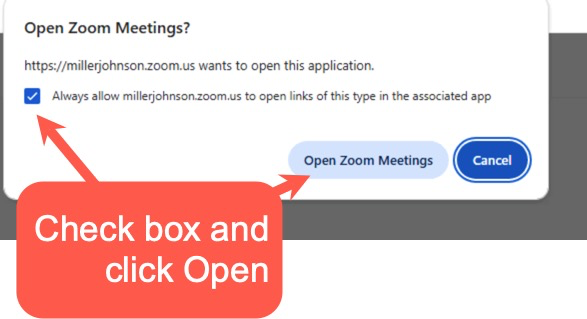
It will switch to a web browser. Check the box and click Open Zoom Meetings.
Open Word, save test document to NetDocs
When you first open Word, it is normal for it to open a web browser window for a minute. You can just close that window. When you save to NetDocs the first time, this window shows up for about one minute and is frozen. But then it lets you scroll down and click Allow.
Hey, where are my bookmarks?
You may notice your web browsers don’t have your bookmarks! Don’t worry, they should have you restart. If you have bookmarks in multiple profiles in Chrome you want to preserve, contact Help Desk if you don’t see the bookmarks after restart.
Speaking of which, after you check that your printers are done installing….
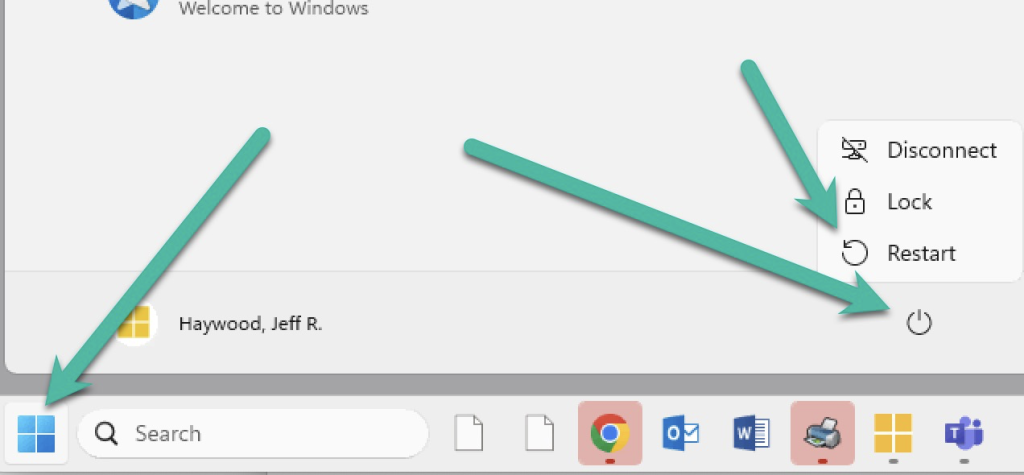
It’s time to restart your MJ Desktop!

After Outlook has been running for a few minutes, we highly recommend you restart your computer at this point as it will import your bookmarks and make a few more adjustments. After restart, you will be able to log back in after 5 minutes.
If you want to adjust these settings again later, you can launch the Miller Johnson Startup Manager from the Start menu.
Hey, where are my Chrome bookmarks?
See step above. You need to restart to get your bookmarks. Contact Help Desk if you still don’t have bookmarks after restarting.
Outlook will look scary and slow at first
When you open Outlook for the first time, it will be empty but will have all your emails loaded within in about 10 minutes. Outlook will be slow for the first few hours.
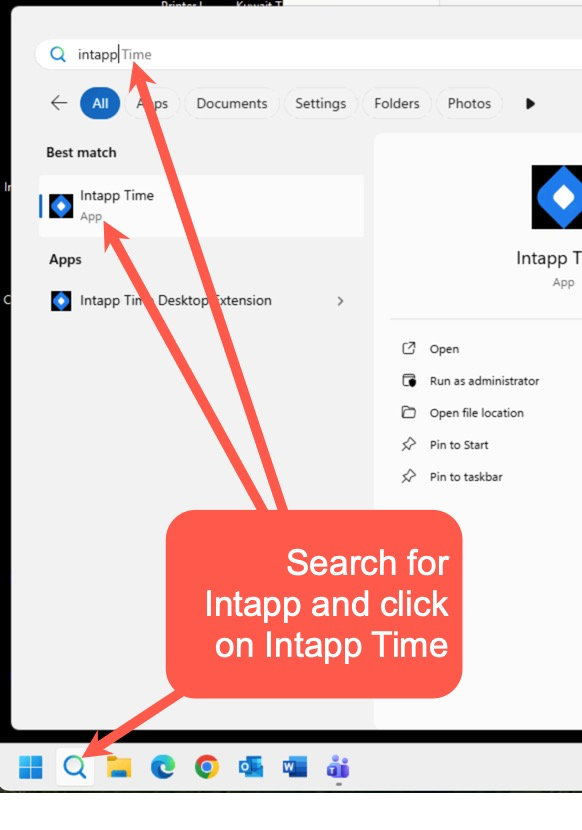
If you are a timekeeper and want the daily email report of what your worked on
You need to launch and login to the Intapp Time app at least once.
Sign into Teams
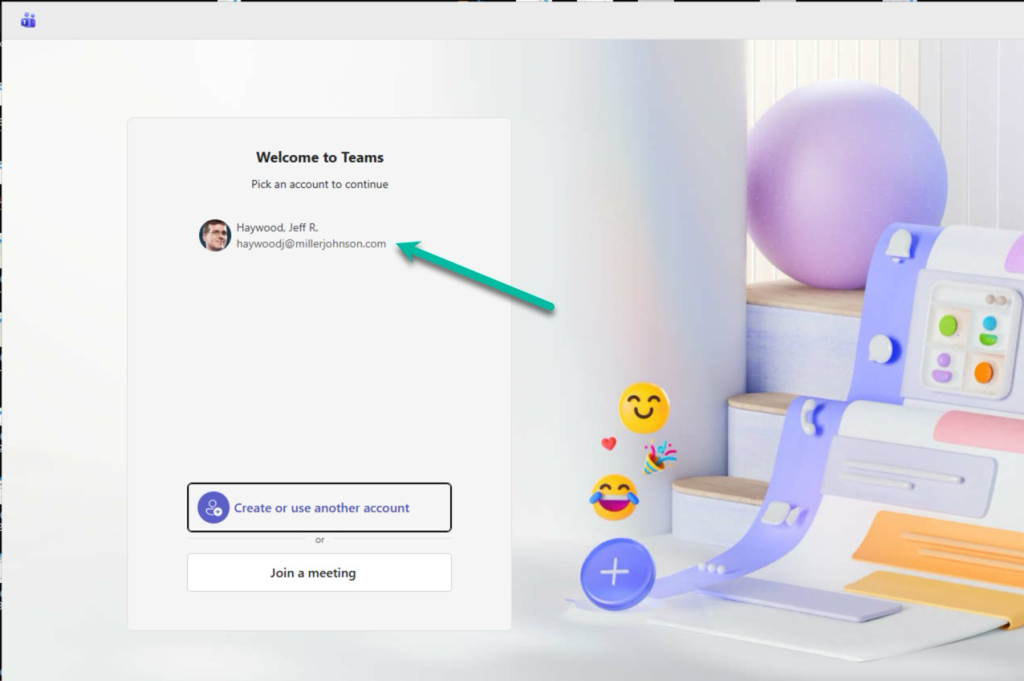
After restart, if Teams opens up like this, just click your name to sign in.
Install printers
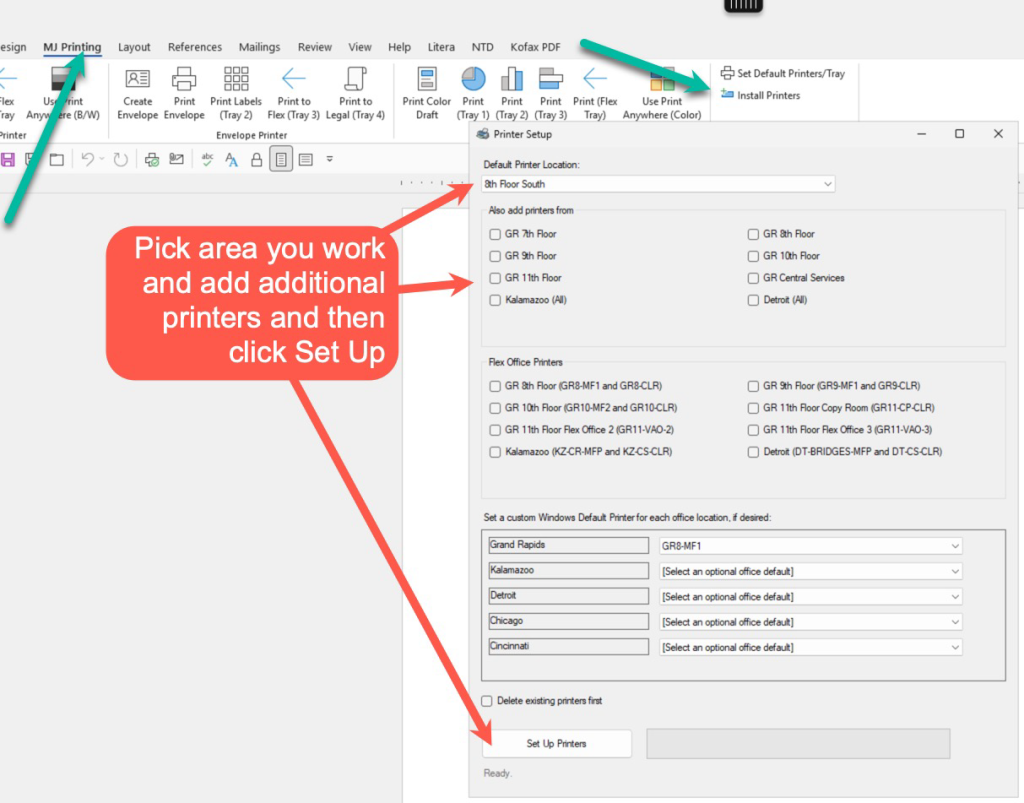
If you haven’t already, launch Word and click the MJ Printing tab. Pick the options below. The printers will install in a couple minutes.
Get your MJ Desktop on both monitors
Here’s the trick to get your MJ Desktop on both screens.
After logging in, click the arrow at the top to expose the menu. If you see a Window option at the top, click it. If you don’t, skip to the next section.

After clicking the Window option, you should see the Miller Johnson desktop and part of your home computer desktop. Click and drag from the corner of the screen to expand the Miller Johnson desktop so it covers part of your second screen.

Click the menu option again at the top and click Full Screen. The Miller Johnson desktop should fill both screens.

NetDocuments will ask you to click Allow a lot
Login to Keeper (if you have an MJ Account)
Follow these steps to login to Keeper
Log into LastPass (if you have an account)
If you have a LastPass account and turned it on in the MJ Startup Manager and restarted, click the puzzle piece in Chrome and click on the thumbtack to show the LastPass icon in Chrome. Then click on the black LastPass icon to sign into your LastPass account.
Otherwise you can install the search Google for the LastPass Chrome extension (or 1Password or Bitwarden) and install it.
Other things you may need to do
Pick what Word features automatically load
To speed up opening Word, some features (Litera and Quick Clean tabs) are only loaded when you need them rather than at start. Here is a guide that walks you through how this works. https://millerjohnson.happyfox.com/kb/article/321-control-what-automatically-loads-in-word-with-litera-add-in-manager/
Turn off pop-up alerts for new emails
https://millerjohnson.happyfox.com/kb/article/82-how-turn-off-the-popup-alert-when-new-email-messages-arrive
Adding Other Mailboxes, Contacts, Calendars
If you work for an attorney and have access to their contacts, calendar, inbox, etc, here are guides on how to add these to your Outlook. https://millerjohnson.happyfox.com/kb/tag/190/
PhraseExpander users: Import your shortcuts
https://millerjohnson.happyfox.com/kb/article/318-restore-phraseexpander-when-moving-to-new-computer/
Force Word to only do straight quotes instead of curly or smart quotes
https://millerjohnson.happyfox.com/kb/article/276-force-word-to-only-do-straight-quotes-instead-of-curly-or-smart-quotes
Hotdocs users:
Install templates
Installing Updated HotDocs Templates – Miller Johnson Help Desk (happyfox.com)
How to save new Answer Files to the Q Drive
https://millerjohnson.happyfox.com/kb/article/528-saving-new-hotdocs-answer-files-after-summer-2022-upgrade/ (click Azure button if prompted to login)
Want icon for each open email/document?
https://millerjohnson.happyfox.com/kb/article/26-show-icons-for-each-open-email-document/
Email helpdesk@millerjohnson.com with questions.